
A one-cable laptop setup sounds simple: sit down, plug one cable into the laptop, and everything at the desk wakes up. The useful version is a planned connection path for display, power, USB devices, Ethernet, audio, storage, webcam, and sometimes multiple monitors.
Build from laptop capability to monitor requirements, power, fixed peripherals, cable routing, and only then the dock or hub.
Fast answer:
Start with the connection path, not the dock
For a fixed work desk, map the laptop, monitor, power, and daily peripherals first. Then choose the least complex path that meets them.
This guide fits
A laptop at a fixed desk where several devices stay connected and a repeatable home plug-in routine matters.
Pause before buying
If gaming refresh and latency, two-laptop switching, or managed-device restrictions determine the design, confirm those constraints first.
A simpler path may be enough
For one laptop, one monitor, and a few peripherals, a direct monitor cable plus charger or a small hub may solve the daily problem without a full dock.
What one-cable actually means
In a serious work setup, “one-cable” means one cable between the laptop and the fixed desk system. The dock, monitor, charger, keyboard, mouse, webcam, lamp, Ethernet, speakers, and power strip still need their own paths. The goal is daily simplicity, not a premium box for its own sake.
The dock is a compatibility bridge. It is not a universal adapter. USB-C describes the connector shape; it does not guarantee charging, display output, Thunderbolt, USB4, high-resolution display support, or enough bandwidth for every device.
The one-cable dependency map
This is the chain that matters. It is not a shopping order. It is the order of proof.
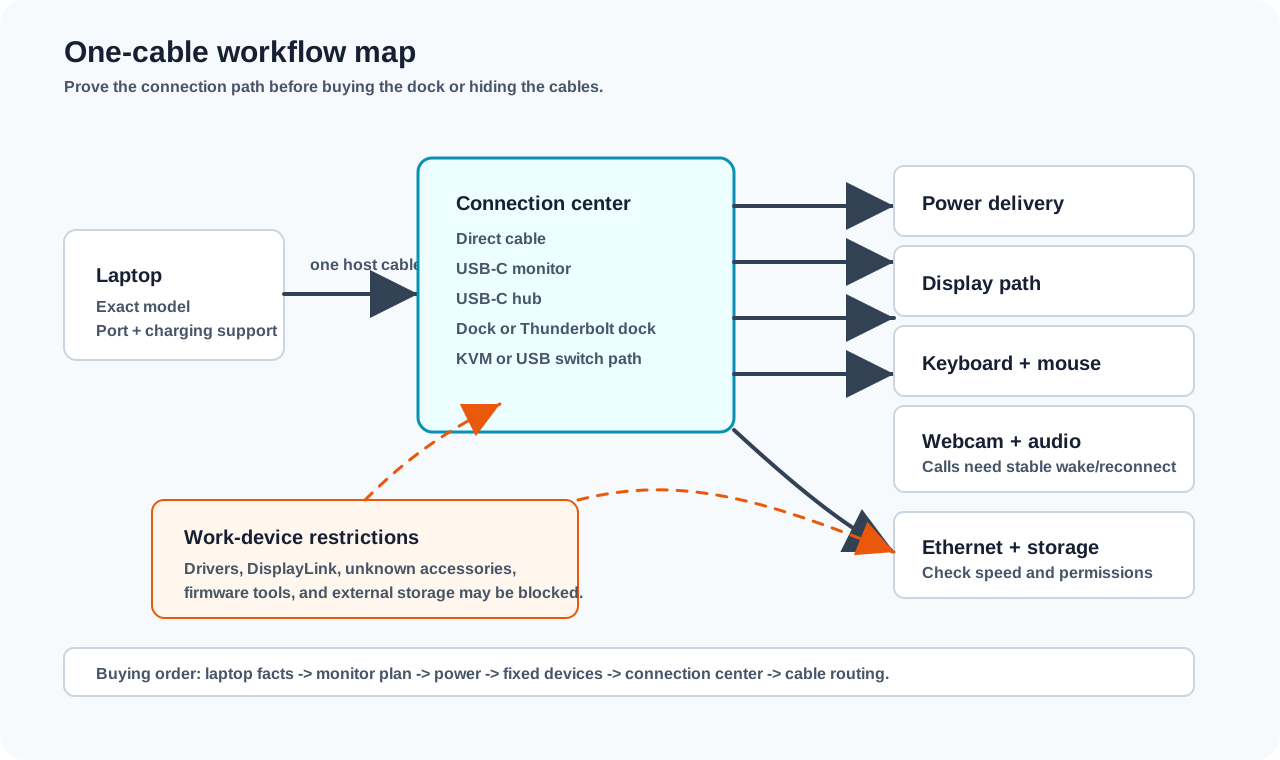
Dependency map:
One-cable compatibility map
Each step defines what the next step must support. If one answer is wrong, a more expensive dock usually will not fix it.
Laptop model
Identify the exact laptop, port type, charging behavior, operating system, and work-device restrictions.
USB-C data, USB-C display, USB4, and Thunderbolt are not interchangeable guesses.Monitor plan
Decide monitor count, resolution, refresh rate, input ports, scaling needs, and whether the monitor itself has USB-C power and USB ports.
Dual 4K, ultrawide, high refresh, and some Mac/Windows combinations need extra checking.Power needs
Confirm whether the laptop can charge over USB-C and how many watts the charger, monitor, hub, or dock must provide.
Too little power can mean slow charging, battery drain under load, or a separate charger still being required.Fixed devices
List keyboard, mouse, webcam, headset, speakers, Ethernet, storage, card reader, printer, and any security or work accessories.
A dock with the wrong port mix creates adapters, crowding, or unreliable unplug-replug behavior.Dock or hub
Choose the least complex device that supports the display, power, data, driver, and desk-placement requirements.
This is where buying starts, after the system requirements are known.Cable routing
Place the dock, host cable, charger, monitor cable, and slack so the desk works sitting, standing, and during quick laptop removal.
Cable management comes after the setup survives real workdays.
Confirm the requirements before shopping
Write down the exact laptop, monitor count and resolution, refresh rate, charging path, and fixed desk devices. If any of those are unknown, do not use a more expensive dock to guess.
For the broader buying-order logic, see What Not to Buy First for Your Home Office Setup. If you are still deciding how the laptop, monitor, keyboard, and stand fit together, start with Laptop + Monitor Setup: What You Actually Need.
If USB-C is the planned connection path, use Can Your USB-C Port Run a Monitor and Charge Your Laptop? to verify video support, simultaneous-display limits, charging output, and cable requirements before comparing docks or monitors.
The most important dock question is whether the laptop can drive the display plan you expect. A dock cannot make every laptop support every external-monitor combination. Confirm the laptop’s display limits before treating a more expensive dock as the fix.
For a general dock-versus-direct-connection explanation, see HP’s laptop docking-station guide. For a concrete host-capability checklist covering DisplayPort Alt Mode, Power Delivery, MST, operating-system limits, and display requirements, see Plugable’s MST dock compatibility guide. These are reference points, not a guarantee for an unverified laptop, dock, monitor, and cable combination.
Dock, hub, USB-C monitor, or KVM?
Use the least complex tool that solves the real connection problem.
If you want the short version before reading every compatibility detail, use Dock vs Hub vs KVM.
Compare options:
Choose the connection path
A one-cable desk can be built several ways. The right choice depends on display needs, power needs, switching behavior, and work-device restrictions.
On a narrow screen, scroll the table horizontally.
| Option | Best for | Watch out for |
|---|---|---|
| USB-C hub | A modest setup with one monitor, a few USB devices, power passthrough, and a lower-cost connection point. | Hubs often have shorter host cables, fewer display options, lower power limits, crowded ports, and less stable desk placement. |
| USB-C dock | A fixed desk with monitor, power, keyboard, mouse, webcam, Ethernet, audio, and a repeatable daily plug-in routine. | Display support varies by laptop, dock chipset, OS, monitor resolution, refresh rate, and cable. |
| USB-C monitor | A clean one-cable-style desk where the monitor can provide display, charging, and USB ports for keyboard and mouse. | Confirm charging wattage, USB ports, display support, and the included cable before assuming the monitor replaces a dock. |
| Thunderbolt or USB4 dock | Higher-bandwidth desk setups, especially when monitor support, fast storage, or multiple high-demand devices matter. | Only worth paying for if the laptop and setup can use the standard. Check compatibility before treating it as a universal upgrade. |
| KVM or USB switch workflow | Switching keyboard, mouse, and sometimes display between work and personal machines. | A KVM can add its own display limits and cable complexity. Sometimes monitor input switching plus a USB switch is cleaner. |
| Direct monitor cable plus charger | One monitor, one laptop, and a simple desk where plugging in display and power separately is fine. | You still need matching ports or an adapter, and peripherals may plug into the laptop separately. |
If your shortlist is a USB-C monitor or a separate dock, compare their desk footprint, port access, and replacement tradeoffs before choosing the connection center.
Count simultaneous jobs, not advertised ports
The port budget is the busiest set of connection jobs the desk needs at one time, not the number of devices you own or ports printed on a dock.
Port-budget worksheet
A useful port budget starts with the busiest real work period, then removes jobs already handled by a monitor, charger, or direct laptop port.
On a narrow screen, scroll the worksheet horizontally.
| Connection job | Typical examples | What to count |
|---|---|---|
| Always-connected display and data | External displays, keyboard or mouse receiver, webcam, audio interface, Ethernet. | Count every job that must remain active through this connection path all day. |
| Peak simultaneous / occasional high bandwidth | External SSD, backup drive, camera transfer, fast card reader. | Count the peak number used together, not every occasional device owned. |
| Charging only | Phone, watch, earbuds, accessory battery. | They may affect total power or access, but remove them from the data-port count when a monitor or dedicated charger can serve them. |
| Security and front/side access | Security key, smart-card reader, temporary headset, removable media. | Reserve reachable ports or a direct-laptop path when policy or daily access requires it. |
| Already served or unused | Monitor USB ports, dedicated Ethernet, unused SD slot, legacy audio, spare display output. | Do not pay for duplicate ports that add no job to the workflow. |
Your result: choose enough verified capability for the peak simultaneous jobs, plus one practical access margin—not the largest port count on the shelf.
Let the worksheet own the full inventory, then size the connection path around peak real work. A dock can have many connectors and still fail the most demanding job, so display support, host bandwidth, charging, cable rating, driver requirements, and operating-system limits need their own checks.
The compatibility worksheet
Keep these answers in a note and update them when you change laptop, monitor, desk, or employer hardware.
Check before buying:
One-cable buying checklist
Most bad dock purchases are compatibility mistakes. Work through these before buying a hub, dock, Thunderbolt dock, monitor, or cable.
Laptop
- Exact model and year, not just brand name.
- Operating system and whether work policy blocks drivers, unknown accessories, firmware tools, or DisplayLink.
- Port support: USB-C data only, USB-C display output, USB4, Thunderbolt, HDMI, DisplayPort, or proprietary charger.
- Charging support over USB-C and required wattage for normal work.
- Number of external monitors the laptop can support without special software or adapters.
Monitors
- Monitor count, resolution, refresh rate, and input ports.
- Whether one monitor is primary and the laptop screen is secondary, or both external monitors are required.
- Whether the monitor has USB-C power delivery, built-in USB ports, Ethernet, speakers, webcam, or KVM features.
- Whether the monitor stand, arm, or desk depth leaves space for the dock and host cable.
Power and cable path
- Whether the dock or monitor provides enough power, or whether the laptop charger stays separate.
- Host cable length and whether it reaches without pulling when the laptop is opened, moved, or removed.
- Cable rating for the job: charging, display, data speed, and Thunderbolt or USB4 if required.
- Standing desk slack if the desktop moves.
Desk devices
- Keyboard and mouse connection type: wired USB, receiver, Bluetooth, or monitor USB ports.
- Webcam, headset, speakers, Ethernet, external storage, card readers, printers, and security devices.
- Which devices must wake reliably after sleep and which can tolerate an occasional reconnect.
- Any devices that need front-facing ports rather than being hidden behind the desk.
Return-window proof
- Buy from a retailer with a clear return policy until the setup is tested with your exact laptop.
- Keep packaging until charging, display, sleep/wake, calls, peripherals, and unplug-replug behavior all pass.
What not to buy yet
Do not buy the most expensive dock as a shortcut around unclear requirements. The premium version of the wrong standard is still wrong.
Skip the dock for now if:
- A direct monitor cable and normal charger solve the daily problem.
- You do not know the laptop’s port capabilities or monitor plan.
- Your work laptop blocks third-party docks or required drivers.
- You are switching between two laptops without a plan for monitor inputs, shared USB devices, and charging.
- You want cable management before knowing where the dock, charger, monitor cable, and laptop actually sit.
If a direct monitor cable and normal charger already solve the workday, buy no dock. Add a hub, monitor arm, webcam, or cable tray only after the working connection path is clear; each item changes the desk layout.
One-cable setup examples
These examples are not affiliate recommendations. They are patterns.
Setup map
Four one-cable patterns
These examples are setup patterns, not affiliate recommendations. Choose the connection center that fits the workday.
Simple one-monitor desk
A better screen without a perfect plug-in ritual.
USB-C monitor desk
One monitor that can act as the connection center.
Docked home desk
A stable desk with several devices that stay plugged in.
Two-laptop desk
Work and personal computers sharing selected desk devices.
Product examples
Treat these as examples of how to evaluate a hub or dock. The product name matters less than laptop support, monitor plan, charging needs, return policy, and the caveats that could make it wrong for your desk.
Conditional example
Anker 341 USB-C Hub 7-in-1
- Best for
- Simple one-monitor desks that need HDMI, USB ports, card readers, and USB-C power passthrough without a full dock.
- Not for
- Dual-monitor setups, 4K60 requirements, Thunderbolt needs, or USB-C display through the hub's USB-C data port.
- Check first
- Manufacturer specs list HDMI at 4K30. Confirm the laptop USB-C port supports display output before buying.
- Basis
- Based on the official Anker product page and the July 2026 product research pass. Not hands-on tested. Last checked 2026-07-12.
Conditional example
CalDigit TS4 Thunderbolt Station 4
- Best for
- Thunderbolt 4 desks with many fixed peripherals and a verified laptop/display plan that can use the extra bandwidth.
- Not for
- USB-C-only laptops, budget setups, base Mac dual-monitor assumptions, or readers who only need keyboard, mouse, and one monitor.
- Check first
- Compatibility-gate this carefully: confirm host Thunderbolt/USB4 support, power needs, monitor limits, Mac external display behavior, cable length, firmware, and sleep/wake behavior.
- Basis
- Research-supported Thunderbolt dock example from the July 2026 product research pass. Not hands-on tested. Last checked 2026-07-12.
The return-window test plan
Do not declare the setup successful after the monitor lights up once. Test the boring daily behaviors during the return window.
During the return window, test:
- Cold plug-in and wake: connect the host cable with the laptop asleep or closed, then wake it.
- Reconnect: unplug the laptop for a meeting or office day, then return and plug back in.
- Charging under load: run normal work apps and calls while checking whether the battery holds steady.
- Video call: Teams, Zoom, or your normal call tool; webcam, microphone, speakers or headset, screen sharing, and lighting.
- Peripherals: keyboard, mouse, external drive, Ethernet, printer, card reader, or security device if used.
- Monitor behavior: resolution, scaling, refresh rate, screen arrangement, and primary display.
- Heat, placement, and movement: check for concerning heat, blocked desk space, host-cable pull, and standing-desk cable slack.
- Work restrictions: confirm the setup after restart, VPN, policy updates, and normal locked-screen behavior.
If you hot-desk between home and office, repeat the reconnect test after a commute day or meeting-room day. The setup has to survive the real routine, not just the first successful plug-in.
If one part fails, identify whether the issue is the laptop, dock, cable, monitor, OS, driver, or power path before replacing everything.
Cable management comes last
Route cables only after you know:
- Where the laptop sits when plugged in.
- Whether the laptop is open or closed.
- Where the dock needs to live for the host cable to reach without tension.
- Whether the charger connects to the dock, monitor, or laptop.
- Which ports need occasional access.
- How much slack the standing desk needs.
Then use a tray, clips, reusable ties, labels, and a reachable power strip. Avoid permanent adhesive routing until the setup has survived real workdays.
Hybrid work considerations
A one-cable home desk can make hybrid work easier only if the travel routine is also sane. Consider duplicating high-friction items such as the charger, USB-C cable, compact mouse, earbuds, or a small travel hub rather than stripping the home desk every office day.
For managed work laptops, assume policies can matter. Employer restrictions may block drivers, firmware tools, unknown accessories, or external storage. If your IT team provides a dock list, start there.
If you use both a work laptop and personal laptop, keep the workday workflow stable and employer-compatible; the personal workflow should not break it.
Use How to Switch Between Work and Personal Laptops at One Desk to separate monitor inputs, shared USB devices, charging, and the fixed-home/travel routine.
Ergonomics caveat
This is practical setup guidance, not medical advice or a professional ergonomic assessment.
A one-cable setup can reduce desk friction and make it easier to place the laptop, monitor, keyboard, mouse, camera, and light in sensible positions. It does not mean a dock, monitor, stand, chair, or keyboard will prevent, treat, or fix pain. If you have pain, numbness, tingling, weakness, injury symptoms, or medical concerns, consult a qualified professional.
For careful setup-geometry guidance, read Home Office Ergonomics: The Practical Version.
The decision rule
Build from verified laptop and display requirements to power, fixed devices, connection path, return-window testing, and finally permanent cable routing. That sequence keeps the desk easy to reason about when the laptop, monitor, work policy, or layout changes.
If the requirements reveal a two-display problem, continue with Dual-Monitor Setup Without Cable Chaos. If the connection path may not be the real bottleneck, use Find a Fix to check the broader setup.