
Decision tool
Dock vs hub vs KVM: choose the simplest connection path.
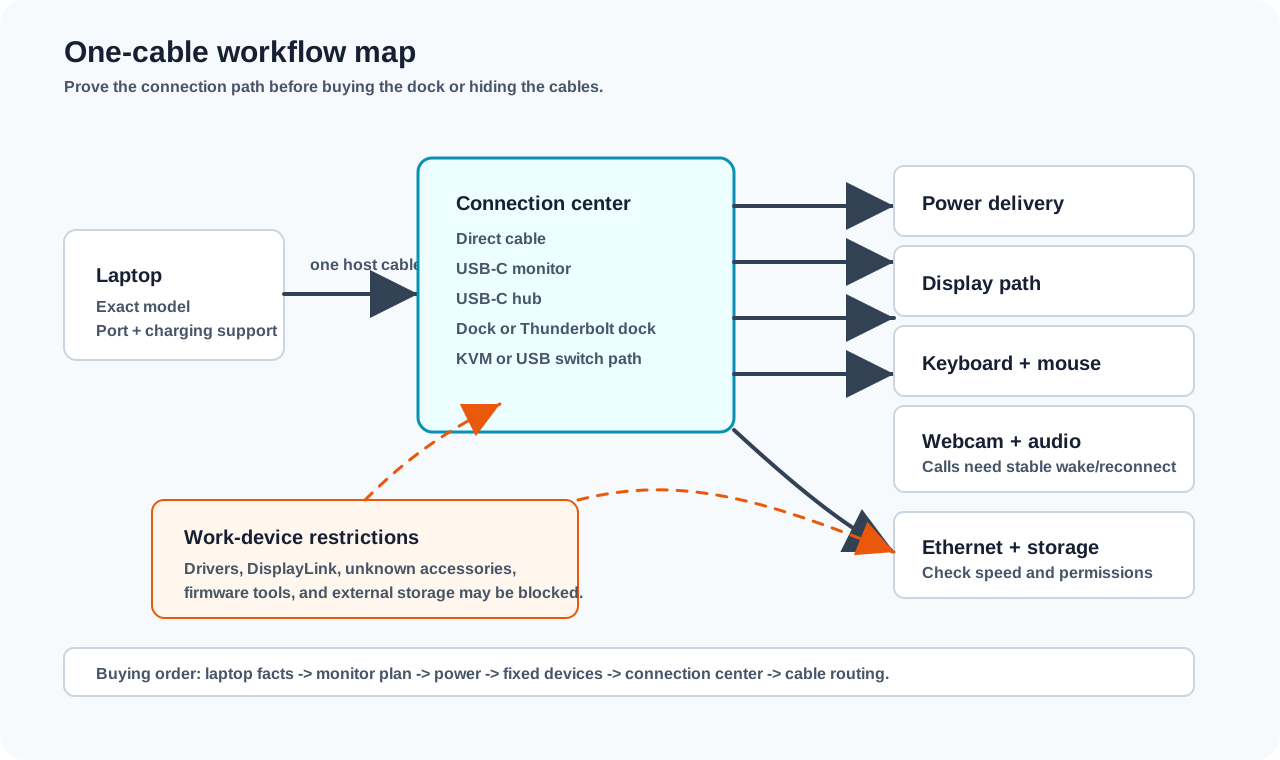
Start with what actually has to connect: laptop, monitor, power, keyboard, mouse, webcam, work restrictions, and maybe a second computer. Then choose the simplest path that supports that workflow.
Compare options
Match the connection path to the job.
The right answer is the option with the fewest moving parts that still supports your real workflow.
If a USB-C monitor and a separate dock both meet the connection requirements, compare their footprint, port access, and replacement tradeoffs.
Direct cable plus charger
- Best when
- One laptop, one monitor, and no strong need to share desk devices.
- Buy first
- A matching monitor cable or adapter, only after checking the laptop and monitor ports.
- Skip
- A dock just to avoid plugging in one extra cable.
USB-C monitor
- Best when
- You want the monitor to handle display, charging, and keyboard or mouse ports.
- Buy first
- A monitor with enough USB-C power delivery, useful USB ports, and the right display support.
- Skip
- Assuming every USB-C monitor can replace a dock.
USB-C hub
- Best when
- A modest desk with one monitor, a few USB devices, and lower power needs.
- Buy first
- A hub with the exact display output, power passthrough, port mix, and host-cable length you need.
- Skip
- Travel hubs that dangle from the laptop on a fixed desk.
USB-C dock
- Best when
- A fixed desk with monitor, power, keyboard, mouse, webcam, audio, Ethernet, or storage staying plugged in.
- Buy first
- A dock only after the laptop, monitor, charging, operating system, and device list are known.
- Skip
- Buying the largest dock before the setup requirements are written down.
Thunderbolt or USB4 dock
- Best when
- Higher-bandwidth desks, demanding monitors, fast storage, or setups that can use the standard.
- Buy first
- Only when the laptop supports Thunderbolt or USB4 and the extra capability solves a real limit.
- Skip
- Paying for a premium standard the laptop cannot use.
KVM or USB switch
- Best when
- You switch keyboard, mouse, and sometimes display between work and personal machines.
- Buy first
- A USB switch for keyboard and mouse first if monitor input switching already works.
- Skip
- A full KVM before deciding what actually needs to switch.
Do not buy yet
- Best when
- You do not know the laptop model, port support, monitor plan, power requirement, or work restrictions.
- Buy first
- The missing facts. Sometimes the first purchase is a cable, stand, keyboard, or monitor instead.
- Skip
- Treating adapters as research.
Check before buying:
Check these before buying
If you cannot answer these, pause the purchase. The wrong dock standard or cable can look correct until calls, charging, sleep, or dual monitors fail.
Laptop and policy
- Exact laptop model, operating system, port standard, charging support, and external-monitor limits.
- Employer restrictions for drivers, DisplayLink, firmware tools, unknown docks, external storage, or shared USB devices.
Display and power
- Monitor count, resolution, refresh rate, input ports, and whether the monitor has USB-C power delivery.
- Laptop charging wattage and whether the dock, hub, monitor, or separate charger supplies it.
Desk devices and switching
- Keyboard, mouse, webcam, headset, speakers, Ethernet, storage, card reader, and devices needing front access.
- Whether one or two computers need to share the monitor and USB devices.
Continue with the right guide